
Hello readers !! Hope you guys enjoyed our last blog. In this article, we will see how to use OCR in Power Automate Desktop. What is an OCR (optical character recognition)?
OCR is a technology that helps the user to convert scanned images into a more readable format. I would like to give you all an example where PAD will be helpful in the OCR context. Suppose you receive daily scanned invoices in your source (email, network drive, etc.). And you need to process data from that scanned invoices. This is a very common scenario and most of the time as an automation guru, we receive such requirements.
Let me clarify one thing, I am not an Automation Guru ?. I have just started exploring PAD(Power Automate Desktop) for automation.
How about we start building the application. You can also view our YouTube video for same.
OCR Action in Power Automate Desktop
Follow the below steps to incorporate OCR Action in PAD.
1. Launch the PAD and create a new flow.
2. Expand OCR action and create a Tesseract OCR engine. Use default settings while creating the OCR engine. Tesseract is an optical character recognition engine for various operating systems. It is free software, released under the Apache License
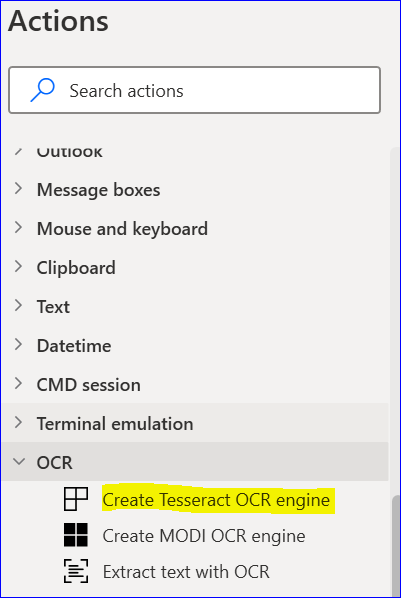
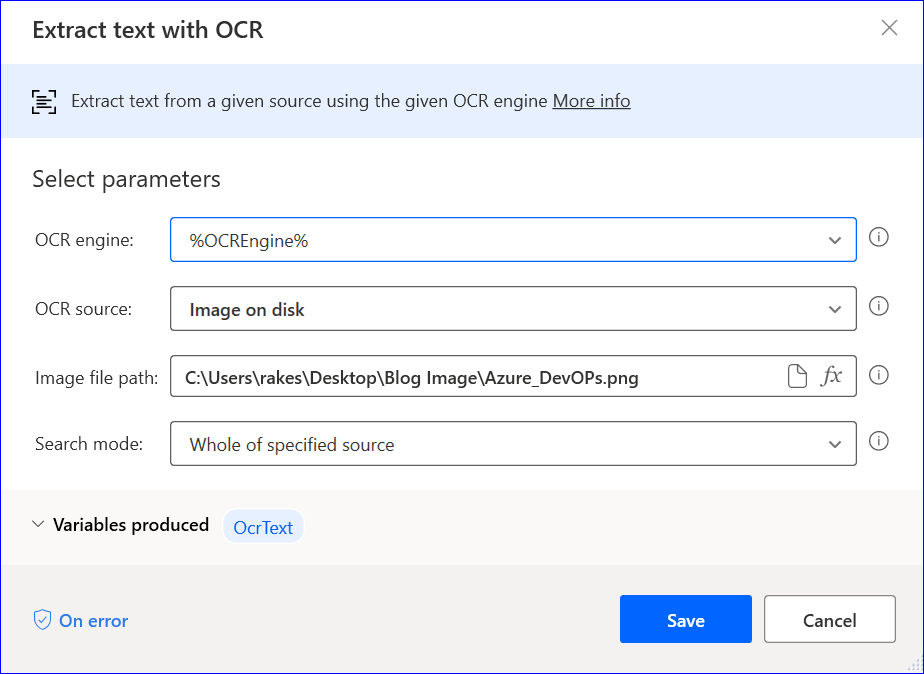
3. Add extract text with OCR action from actions pane.
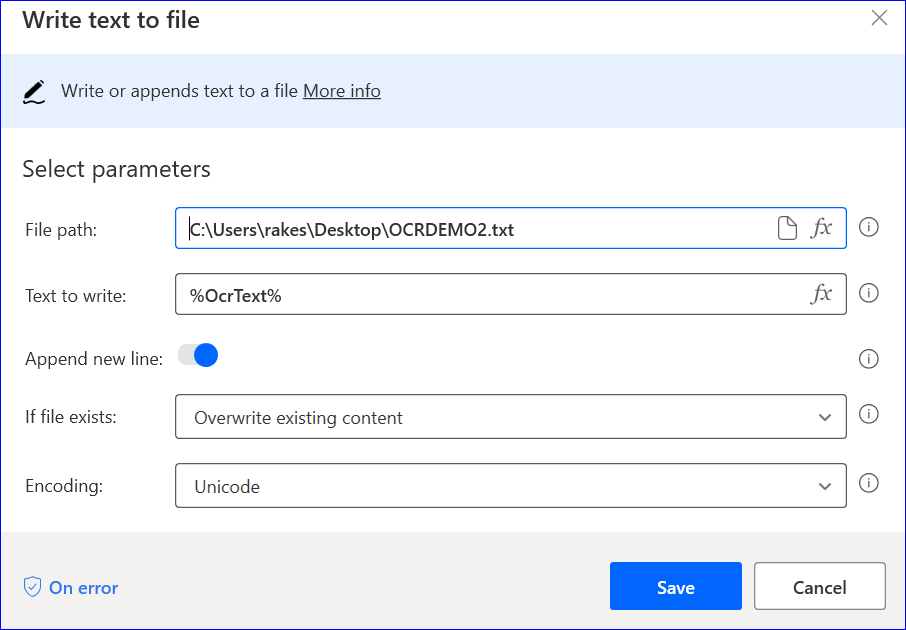
4. Now we will write text to file. You can create a text file and can pass the file path of the text file. Refer below picture for parameters settings.
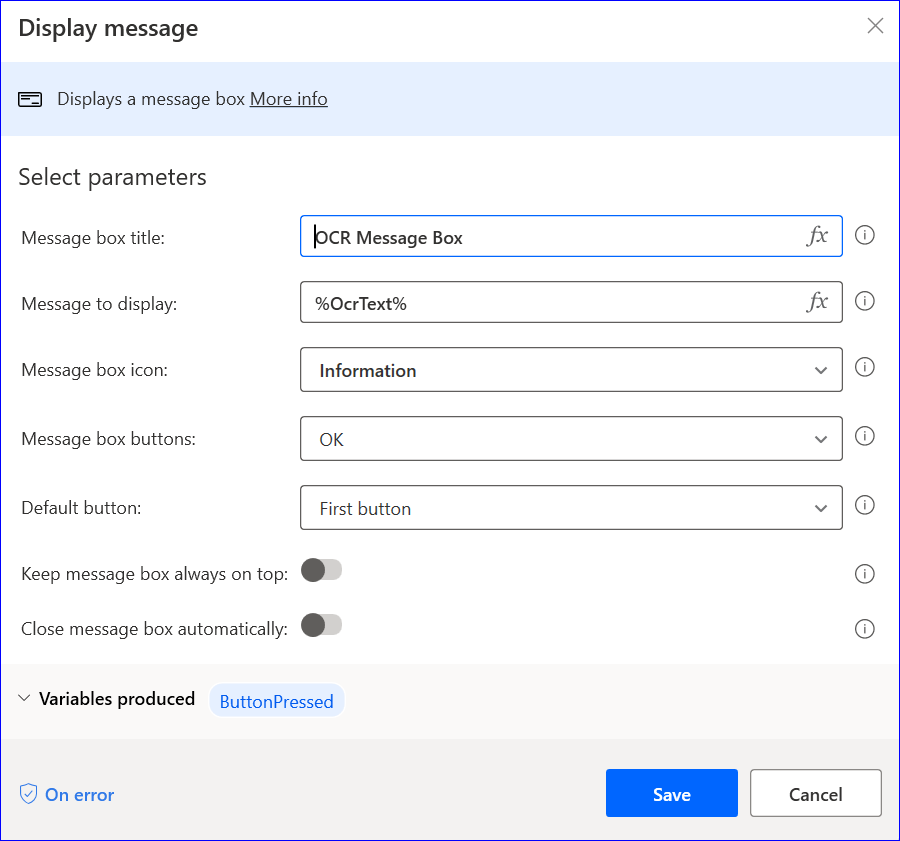
5. We will use display message action to show the same text in message box. Can check below screenshot for the parameters.
After performing the above steps, run and save the flow. Hope you all will like this article. Please use the comment box to suggest topics on PAD.
Yes it working good