Hello everyone! In many cases, Most of the time we need Conditional Visibility in PowerApps. This is a very common scenario where we need to make the gallery appear based on drop-down selection. In this blog, we will create a simple employee form with a conditional appearance of the gallery. From the below GIF screenshot, you can see the appearance of the gallery based on drop-down selection. You can visit the link to see more articles on PowerApps.
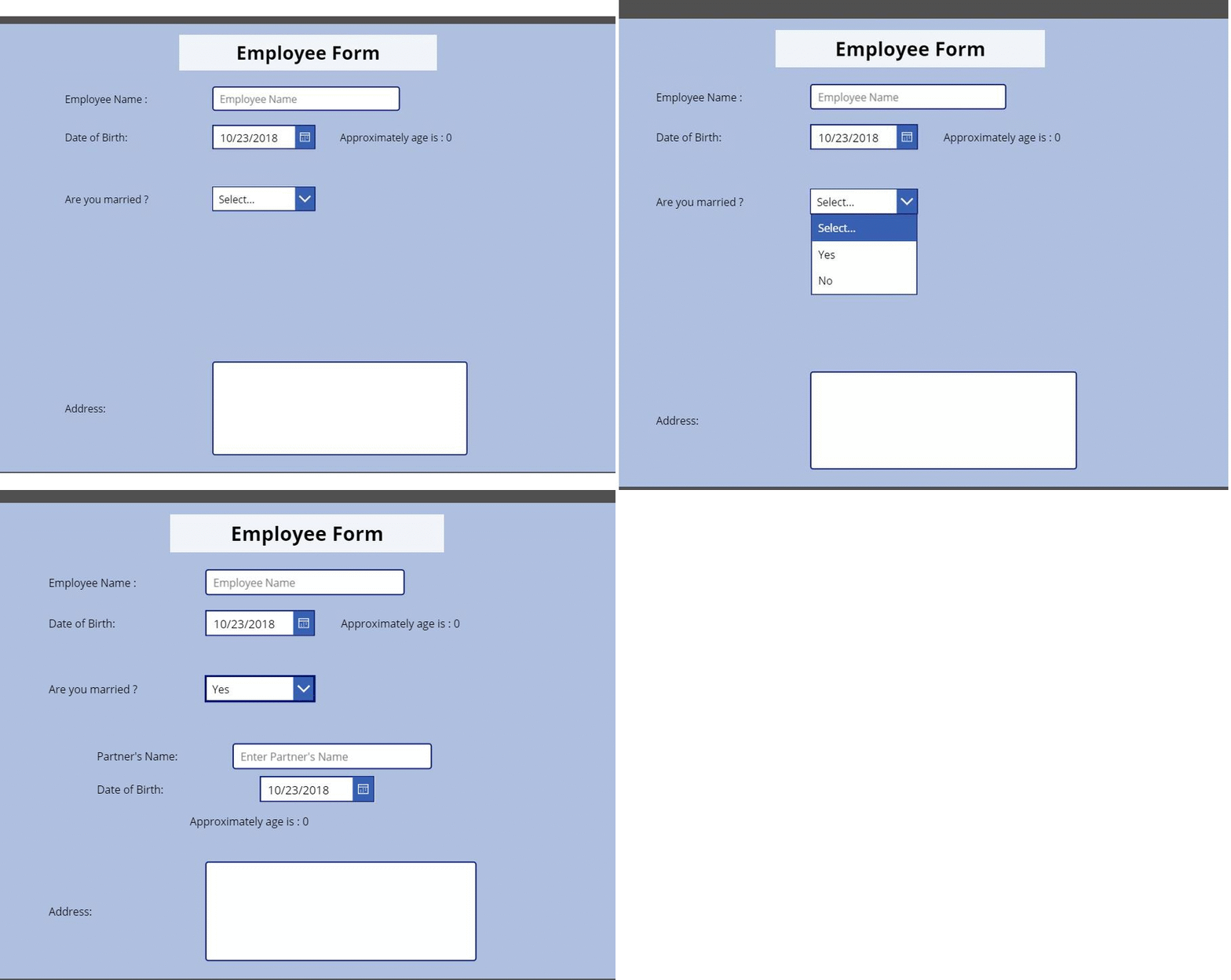
Figure 1.
Let’s start developing the form.
The conditional appearance of gallery
-
In order to bind items in dropdown we are using fx = ["Select...","Yes","No"].
-
To create GalleryItems collections you can use Collect(GalleryItems,{PartnerName: ""});ClearCollect(GalleryItems,{}) OnSelect event of dropdown box. - Now bind GalleryItems with the gallery.
-
Now we will set the visiblity of Gallery by making Visible fx = If(Dropdown1.Selected.Value="Yes",true)
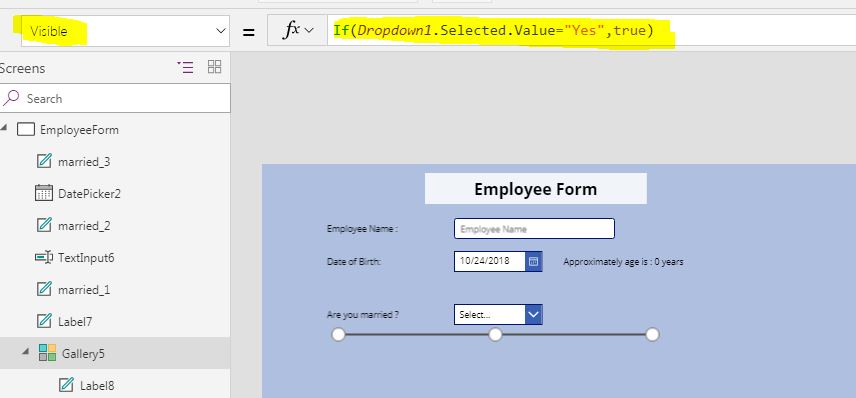
Figure 2.
Calculation of Age based on DOB field
- We are using a label to show the Approximate age of the user based on DOB field selection.
to do this you can use (fx) Concatenate("Approximately age is : ",Text(Year(Now())-Year(DatePicker2.SelectedDate)), " years")
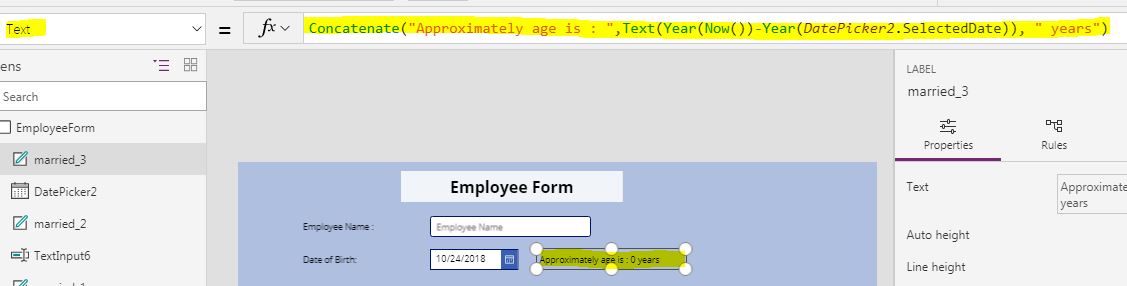
Figure 3.
- You also need to set the EndYear of the DOB field to Year(Now()).
Making textbox Multi-line for Address field
- You can set Mode = (
fx) TextMode.MultiLine of Address field in order to make it multiline.

Figure 4.
After doing the above steps we are ready to launch our Employee Form. To learn more PowerApps formulas you can visit the link.
Hope you all like this article Conditional Visibility in PowerApps and subscribe to our site to learn more stuff on SharePoint, PowerApps, Azure, and flow.
On 22nd October 2018, Microsoft has made SharePoint Server 2019 generally available, Ranjan Pandey, my colleague at Flexmind is soon going to write an article on “New Features of SharePoint 2019”.
Thank you all for reading our articles. !!